 SmarterEPC - Supporting tools
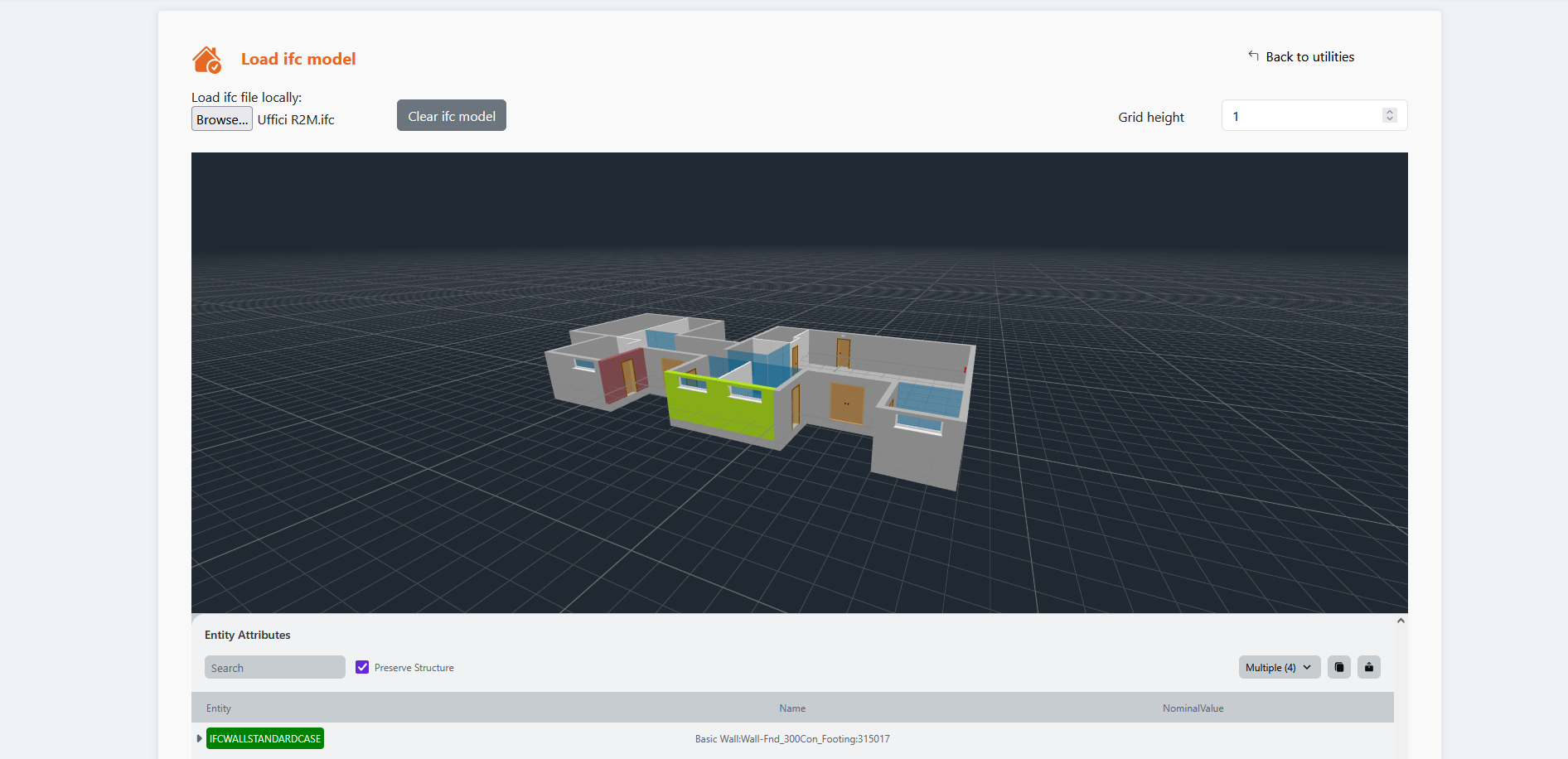
- Use these tools to upload, view, extract information and verify your building's IFC file before starting the EPC or SRI assessment.
- Use dedicated tools to extract element properties, isolate elements or hide elements enhancing the understanding of the model.
- If the IFC file is not compatible for the assessments you can generate a compatible IFC file and later on enrich it with the correct data.
Download an IFC file which is compatible with the inputs of the Hub's tools.
Check whether the uploaded IFC model is compatible with the EPC/SRI tools connected to the SmarterEPC Hub.